agentos.guide › blog
Grok Bot Vault In Your Agent OS: A Ten-Minute Quick Start, Five Copy-Paste Prompts And A Weekly Routine
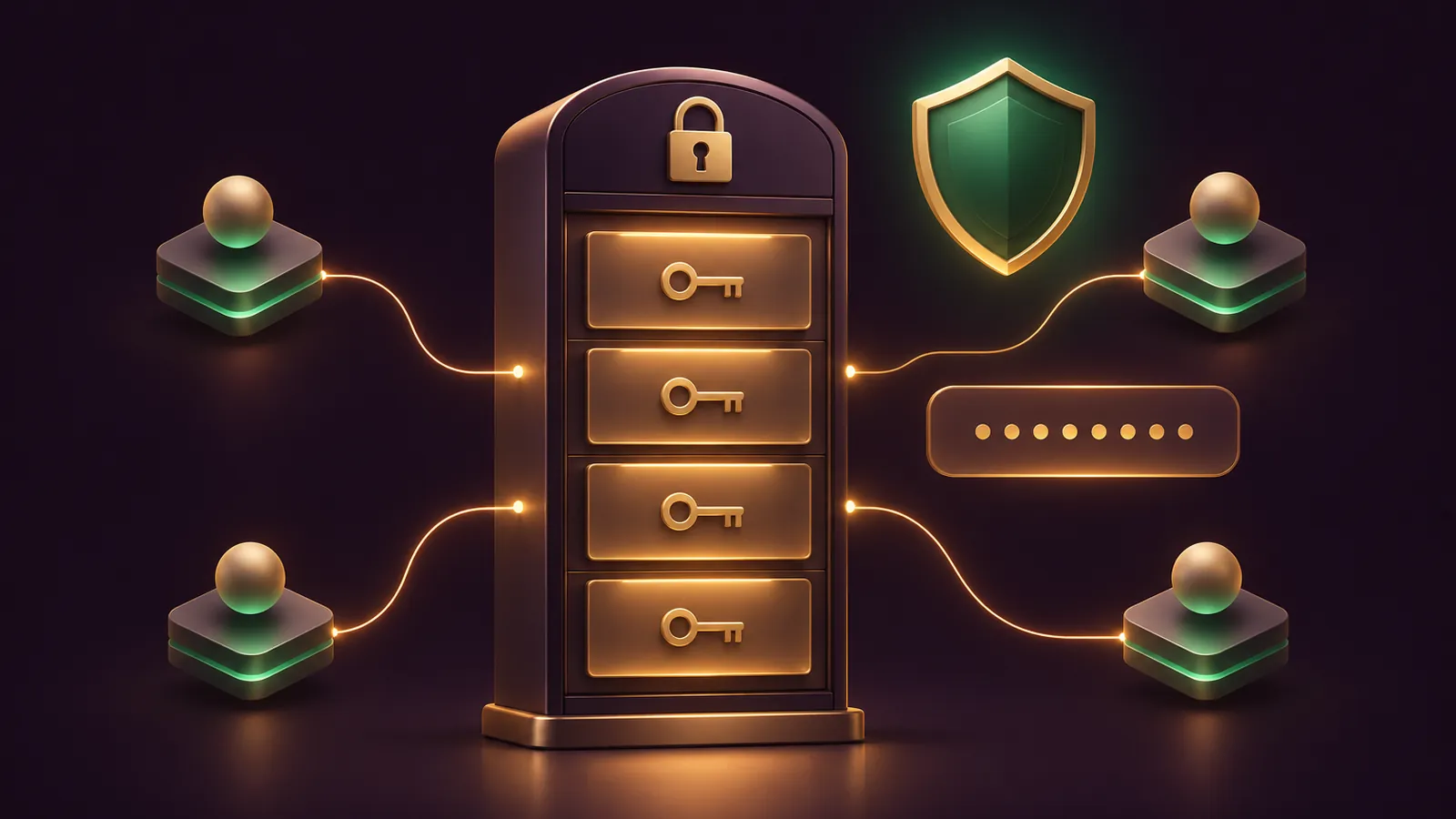
Grok Bot Vault becomes the credentials layer of your Agent OS: the one place your Bots draw logins, cards and addresses from, without any agent ever handling the raw secret.
This guide gives you a ten-minute quick start, five copy-paste prompts and a weekly routine that keeps the store tidy.
Everything comes from the xAI Vault docs and the pages they link to.
If you'd like my team to review your setup, book a free SEO strategy session.
Quick start: ten minutes in Settings
- Update Grok Bot to 0.75.2 or newer. On iPhone, use 1.19.0 or newer if you plan to type logins there.
- Open Settings, then Vault.
- Choose New item and save your three busiest logins, each with a hint.
- Save your business contact details as Contact info.
- In Settings, General, under Bot, add an Ask first rule for payments (see the approvals page).
- Leave cards out for now. You'll decide on those in prompt 4.
That's the base layer, and it takes about ten minutes on a desktop with your password manager open beside it.
The prompts below do the rest from inside a chat.
Where Vault sits in your Agent OS
Think of your Agent OS as a team of agents with defined jobs: research, writing, admin, buying.
Vault isn't an agent.
It's the shared key cabinet every one of those agents can open, because Vault covers the whole account and items can't be limited to a single Bot.
That means your job titles and hints do the routing.
A hint such as "Use only for the admin agent's supplier orders" tells a Bot which entry to choose when several could fit.
Shared agents are different: Team Bots can't open your personal Vault and keep their own logins and Secrets instead.
| Agent OS layer | Grok Bot feature | Who controls it |
|---|---|---|
| Personal credentials | Vault: logins, cards, contact info | You |
| API keys | Secure secret card | You, via the masked field |
| Shared credentials | Team Bot logins and Secrets | Team Bot managers |
| Fallback logins | Connected password manager such as 1Password | You, approving each login |
| Guard rails | Ask first rules in Auto Review | You |
Prompt 1: audit what's already saved
Start every new setup by asking the Bot what it can already reach.
It can list your saved logins and read contact info, but never the secret values, so this is safe to run.
List every login saved in my Vault by website, plus the hint on each one.
Then list my saved contact info entries.
Flag any login with no hint, and any two entries that look like duplicates.
Do not try to sign in anywhere. Just report.
Fix missing hints in Settings, Vault before you move on.
Prompt 2: write hints that route each agent
A Bot is allowed to change hints and nicknames when you ask, so you can let it draft them.
For each login in my Vault, suggest a one-line hint that says which job
it is for, using these agents: Admin, Research, Buyer.
Show me the list first. When I reply "apply", update the hints and nicknames.
Do not change any website, username or password.
Passwords, usernames and websites can only be changed in Settings, Vault, so the Bot can't touch them even if asked.
🔥 Want the full prompt library for your Agent OS?
The AI Profit Boardroom gives you step-by-step video trainings, the installable Agent OS, four coaching calls a week and 3,400+ members sharing their prompts.
Prompt 3: sign in through the right order
A Bot signs in with a Vault login first, then a connected password manager, then a Secure Form.
This prompt makes that order explicit and tells the agent what to do when it needs your hands.
Sign in to my supplier portal and download last month's invoices.
Use the Vault login with the hint "Admin". If none fits, use 1Password.
If the site needs single sign-on, a passkey, a QR code or approval on
another device, stop and ask me to take over. Tell me when you are done.
When it hands over, choose Take over, finish that single step, then choose I'm done.
After that, the session remains signed in on the Bot's computer for every Bot you run.
To connect 1Password, follow the computer and apps guide: Connect apps, 1Password under Password Managers, then Connect 1Password.
Prompt 4: decide how cards are handled
Saved cards pay at checkout without a prompt each time.
If you want sign-off on every purchase, keep cards out and use Secure Forms with the save box unticked.
Remember this rule for every task: never save a card to my Vault.
When you need a card, send me a Secure Form and I will leave
"Securely save to Bot's vault" unticked.
Before any payment, show me the merchant, the items and the total.
Pair this with the Ask first rule from the quick start, which always stops a matching action.
The Grok Bot shopping prompts on this site go deeper on order cards.
Prompt 5: store API keys the right way
Keys never go in ordinary chat, a Shell command or a file on the computer.
I need you to use my email marketing API key for this task.
Ask me for it with the secure secret card, not in chat.
Do not write the key into any file, shell profile or script.
Refer to it only by name in your notes.
Keys saved through the secure card survive Recover, Reset and computer updates, which can wipe secrets typed into files or installed tools.
📞 Want a second pair of eyes on your Agent OS?
Book a free SEO strategy session and my team will walk through which agents should reach which logins.
Moving logins in from another manager
For bulk setup, use the desktop app and pick Import from CSV under New item.
It reads exports from the big browsers (Chrome, Edge, Safari, Firefox) and from 1Password, Bitwarden or LastPass.
The file is read on your machine, never uploaded, and must be under 5 MB.
Delete the export straight after, as it holds your passwords unencrypted.
Then run prompt 2 again so every imported login gets a hint.
Shared agents: Team Bots in your Agent OS
If several people use the same agent, build it as a Team Bot rather than sharing your own account.
Your personal Vault is closed to Team Bots, which is the point: a colleague chatting with the shared agent can't reach your cards or logins.
Owners and managers add the Team Bot's own logins under Bot's accounts in its Manage settings.
Only managers see or change those, and they never mix into your personal list.
Shared keys go under Secrets as a name, a description and the value, and the Bot only ever sees the first two.
Every teammate's chat uses those secrets, so keep them to keys the whole team is cleared for.
When a secret seems to vanish
Don't panic and don't re-type it into a file.
Saved values never show again, so an empty-looking field tells you nothing.
On a Team Bot, a name still listed under Secrets means the value is still there.
If the name has gone and nobody chose Remove, quit Grok Bot fully, reopen it, and check from a second device before adding anything back.
If you see an error in the list, press Try Again first.
Only re-add the secret once it's missing everywhere.
Your weekly Vault routine
- Monday: run prompt 1 and fix missing hints or duplicates.
- Wednesday: check which contact details Bots saved from chats last week, and remove anything you don't want kept.
- Friday: replace any key or password that a former helper knew, using Replace.
- First Monday of the month: review your Ask first rules; you can hold up to 20, each up to 1,000 characters.
Saved values are write-only, so replacing is the only way to rotate them.
Keep the originals in your main password manager.
Once the routine feels automatic, add one new agent to the cabinet at a time, give it a clear name, and write its hints before it touches a single login.
That discipline matters more than any setting, because the cabinet itself has no per-agent locks.
Get the full Agent OS, prompt packs and weekly coaching inside the AI Profit Boardroom.
Also On Our Network
- 🌐 The eight-step order I'd follow to fill Vault on a fresh account
- 🌐 What shops, service firms and agencies should save in Vault, and what not to
- 🌐 An eight-row scorecard of Vault, from secret handling to saved-card payments
- 🌐 Which GoldieBench models to pair with Vault for access maps and onboarding pages
FAQ
Can I give each agent its own Grok Bot Vault?
No. Vault covers the whole account, so every Bot can use every item. Use hints to steer which agent picks which entry.
Can a Bot edit my Vault from a chat?
Partly. It can change contact info, nicknames and hints when you ask. Passwords, usernames, websites and card details change only in Settings, Vault.
Where should my agents keep API keys?
In the secure secret card when a Bot asks, or under Secrets on a Team Bot. Never in chat, a Shell command or a file.
Does Vault survive a computer reset?
Yes. Recover, Reset and updates can remove secrets typed into files or tools, but not Vault, the secure card or Team Bot Secrets.
Final word on Grok Bot Vault In Your Agent OS
Set it up once, run the routine weekly, and grab a free call with my team or join the AI Profit Boardroom to grow your Agent OS around Grok Bot Vault.
About Julian
I'm Julian Goldie, an AI entrepreneur, SEO expert and the founder of the AI Profit Boardroom, which has 3,400+ members.
I help business owners scale with AI agents, automation and SEO.
My YouTube channel has 400,000+ subscribers, and I run Goldie Agency, a seven-figure SEO agency.
Related guides on agentos.guide
→ Grok Bot Shopping In Your Agent OS: A Quick Start, 5 Copy-Paste Prompts And A Weekly Buying Workflow
→ Grok Bot Teams: Plan, Audit And Roll Out A Shared Bot With 5 Prompts In Your Agent OS
→ Grok Bot Computer Use: A Quick Start, Five Copy-Paste Prompts And A Daily Workflow In Your Agent OS
Get the whole Agent OS
The installable system behind every guide on this site — dashboard, agents, memory and pipelines — updated as new tools land, with 3,400+ members and four coaching calls a week.
Join the AI Profit Boardroom →📺 Video notes + links to the tools 👉
🎥 Learn how I make these videos 👉