agentos.guide › blog
Best Grok Bot Uses In Your Agent OS: A Quick Start, Five Copy-Paste Prompts And A Weekly Workflow
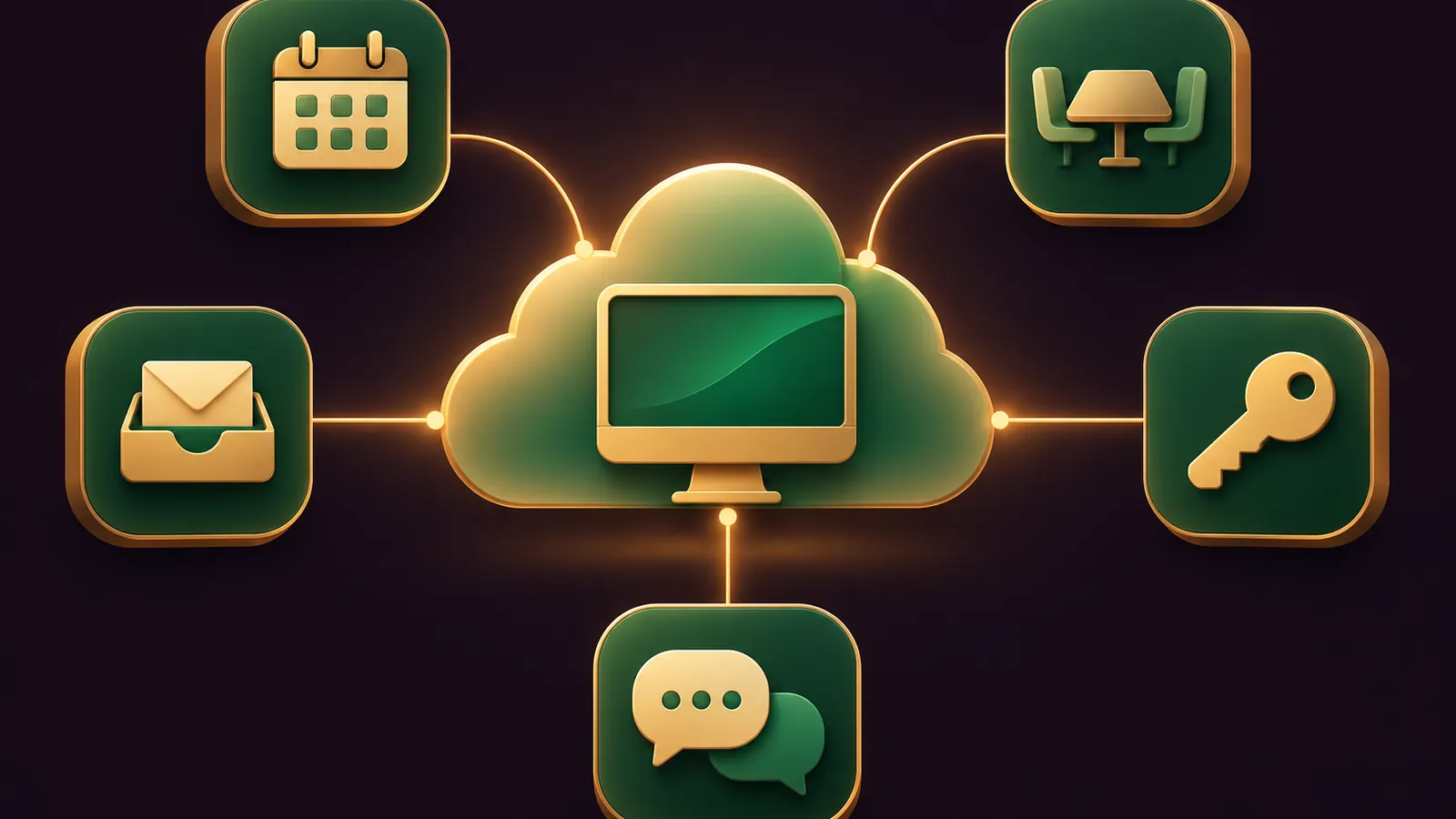
Inside an Agent OS, the best Grok Bot uses are the jobs that need a computer running round the clock: scheduled briefings, meeting write-ups, portal exports behind Vault, and multi-Bot handoffs.
Book a free SEO strategy session →
This guide gives you a quick start, five copy-paste prompts and a weekly workflow that ties them together.
Every feature comes from the official Grok Bot use cases and the pages linked from it.
Want my team to map this onto your own stack? Book a free SEO strategy session.
Quick start: fifteen minutes before the first prompt
- Check your plan. Grok Bot comes with Premium, Super and Ultra on The X Subscription; Plus doesn't include it.
- Open Connect apps and add Gmail, Google Calendar and Slack. Finish each Authorize step.
- In Settings, General, under Bot, keep Auto-review on and add three Ask first rules: sending email, paying for anything, posting in Slack.
- Set the Timezone under Bot so schedules land at the right hour.
- Save the logins for your two busiest portals in Settings, Vault.
That's the foundation. Each prompt below builds on it.
Do the quick start on desktop if you can. Custom connectors and CSV import of logins into Vault are desktop features, and the Webhook fields on a routine are only shown there.
Where Grok Bot sits in your Agent OS
Think of your Agent OS as roles: research, writing, admin, reporting.
Grok Bot fills the roles that need a live computer. All its Bots work from the same always-on cloud machine, which has a browser, files and a terminal, and jobs keep going with your laptop shut.
| Agent OS role | Grok Bot feature | Prompt below |
|---|---|---|
| Daily briefing | Routine on a schedule | 1 |
| Meeting secretary | Meetings | 2 |
| Inbox triage | Gmail drafts | 3 |
| Portal admin | Vault and computer use | 4 |
| Process memory | Skills | Saved from 4 |
| Content team | Group chat handoffs | 5 |
Prompt 1: the 7 am briefing routine
Give this to the Bot that should own the briefing.
Set up a routine: every weekday at 7:00 AM, read my unread email,
today's calendar and any Slack mentions of my name. Post one short
list here: what needs me today, what can wait, and any clashes.
Do not reply to anyone. If a source fails, say which one.
Open the routine afterwards and read When to run. A new routine waits for its next slot, so press Test to see the output today, as the routine docs explain.
Book a free SEO strategy session →
More scheduling patterns are in the Grok Bot routines guide.
Prompt 2: the meeting secretary
Paste the call link in with the prompt.
Join this meeting when it starts and take notes. Stay quiet in the
meeting chat unless someone asks you a direct question. When it
ends, send me the summary and a table of action items with owners.
Approve the card, then admit the Bot when the host's waiting room shows it. For a fully silent note-taker, choose Disable Interactivity on the meeting in the Bot's details.
The meetings page lists Team, Enterprise and Ultra plans for this one.
🔥 Want the whole Agent OS these prompts plug into?
The AI Profit Boardroom gives you step-by-step video trainings, the installable Agent OS, four coaching calls a week and 3,400+ members building with it.
Prompt 3: inbox triage with drafts only
Sort my unread email into three groups: urgent, needs a reply, FYI.
Draft replies for the urgent ones in my usual tone. Don't send
anything. Show me the drafts here.
Drafts arrive as cards marked Needs approval. You edit and choose Send, or Discard.
Drafts are the default, and I'd keep them that way for any agent that writes to customers.
Prompt 4: the portal export behind Vault
Sign in to my supplier portal with the saved login, download last
month's statement and save it to my files. If you hit a passkey,
a CAPTCHA or a QR code, hand me the computer. Don't change any
settings in the portal.
The Vault docs confirm that saved passwords, card numbers and security codes stay hidden from the Bot.
One thing to know: a saved card pays at checkout without asking each time. Keep cards out of Vault if you want to sign off every payment.
When the Bot needs you, open the computer from the preview panel, finish only the blocked step, then tell it to carry on.
Lock prompt 4 in as a skill
Once the export works, don't retype it next month. Tell the same Bot to save the run as a skill called "Monthly supplier export", with the steps, where the file goes, what to do if the login fails, and the rule that nothing leaves your account without your OK.
Book a free SEO strategy session →
Private skills form one library that all your Bots share, so your admin agent and your reporting agent follow the same method. A Bot may still need the right app or login to use one.
Got the Teach a task button in the computer panel? Then demonstrate the workflow rather than writing it out. It records up to ten minutes of visible screen activity and leaves the microphone out.
The docs treat a taught skill as a draft. Add failure handling and approval points, test it on a safe example, then put it on a monthly routine.
A good skill, per the skills section, states when to use it, the inputs and access it needs, the order of work, how to check the result, what to return and what needs approval.
Prompt 5: a three-Bot content team
Start a group chat with two to six Bots, then give each one a stage.
@Scout collect this week's news on our industry with a link for
every claim. @Writer turn it into a short update for clients.
@Checker compare each line with the links and list only problems.
Nobody publishes or sends anything.
Handoffs between Bots are asynchronous, so the receiving Bot wakes, handles its part and replies later.
The group chat docs add a detail worth knowing: approval cards and email drafts don't show in groups, so final sign-off happens in a one-to-one chat.
📞 Want a second opinion on your Agent OS?
Book a free SEO strategy session and my team will look at which roles Grok Bot should own.
The weekly workflow
- Monday to Friday, 7 am: prompt 1 runs on its own.
- Each client call: prompt 2, pasted with the link.
- Mid-morning: prompt 3 clears the inbox into drafts.
- First of the month: the supplier export skill runs as a routine.
- Thursday: prompt 5 builds the client update for Friday.
Every Friday, open each routine, check it isn't Paused, and read the run history for failures.
The phone app shows each recent run as Running, Succeeded or Failed, with the reason for a failure, so the check takes a couple of minutes from anywhere.
Book a free SEO strategy session →
Plugging in tools the catalog doesn't have
Most Agent OS stacks include at least one tool with no ready-made app.
Ask a Bot to add the tool's MCP server, either from its web address or from a launch command on the cloud machine. Command-launched servers are shared with your other Bots as well.
On desktop you can add it yourself: choose Add a custom connector at the bottom of Connect apps, give it a Name, and pick Remote HTTPS with a Server URL or Command with its Arguments.
App logins stay off the shared computer. The connect an app docs explain that OAuth tokens live on the connector backend; the Bot uses the tools but never gets the tokens.
Servers on a private network ask for your approval before they're added.
Your phone as the remote control
The mobile app runs on iPhone with iOS 18 or later, iPad, and Android 9 or later, and it reaches the same Bots, routines and cloud computer.
Use it to approve cards, answer a Bot's question and read results away from your desk.
In your own chat with your own Bot, it can reach your calendar, contacts, location and alarms, and iPhone adds Reminders and Home. Those phone features don't work in group chats or Slack.
Limits to build around
- Phone calls to businesses work in the US only, and you confirm each one.
- Team Bots, for sharing one agent with staff, need a Team or Enterprise plan.
- @bot tagging on X is still switched off for X accounts registered in Australia, the United Kingdom, EU countries, Iceland, Liechtenstein and Norway.
- Each routine run spends usage, so keep Slack triggers narrow.
Want the video walkthroughs of each prompt? Join the AI Profit Boardroom.
Book a free SEO strategy session →
Also On Our Network
FAQ
Which Grok Bot prompt should I run first?
The 7 am briefing routine. It uses the apps you connected in the quick start and runs on the cloud computer with your laptop closed.
Why did my briefing routine not run today?
A new routine waits for its next scheduled time. Open it and press Test to run it now.
Can the Bots in a group chat send emails?
Email drafts and approval cards do not appear in group chats, so sending is approved in a one-to-one chat with the Bot.
Do skills work across all my agents?
Yes. Private skills are one library shared by all your Bots, although a Bot may need the right app or login to use one.
Final word on Best Grok Bot Uses In Your Agent OS
Paste prompt 1 today, add one prompt a week, and grab a free call with my team or join the AI Profit Boardroom to build out the best Grok Bot uses in your Agent OS.
About Julian
I'm Julian Goldie, an AI entrepreneur, SEO expert and the founder of the AI Profit Boardroom, which has 3,400+ members.
I help business owners scale with AI agents, automation and SEO.
My YouTube channel has 400,000+ subscribers, and I run Goldie Agency, a seven-figure SEO agency.
Related guides on agentos.guide
→ Grok Bot Teams: Plan, Audit And Roll Out A Shared Bot With 5 Prompts In Your Agent OS
→ Grok Bot Computer Use: A Quick Start, Five Copy-Paste Prompts And A Daily Workflow In Your Agent OS
→ Grok Bot Shopping In Your Agent OS: A Quick Start, 5 Copy-Paste Prompts And A Weekly Buying Workflow
Get the whole Agent OS
The installable system behind every guide on this site — dashboard, agents, memory and pipelines — updated as new tools land, with 3,400+ members and four coaching calls a week.
Join the AI Profit Boardroom →📺 Video notes + links to the tools 👉
🎥 Learn how I make these videos 👉