How to build the Goldie Inbox Autopilot™.
This is the build. The exact way I gave my Hermes agent its own inbox — so it reads, drafts, and sends email on command. I broke it the two common ways first. Here's the one that actually works, step by step.
I broke this three ways before it worked.
Before
I wanted my agent to handle my email.
First I tried the popular "plugin" route. It needed a background server that wouldn't start.
Then I tried the password route. Google blocks app passwords on business accounts now.
I wasted hours hitting walls that every tutorial skips over.
Then I found the path that actually works — a Google service account, wired in as a skill.
After
Now my agent has its own inbox.
I type "email Dave saying I'll call tomorrow" and it just sends it.
No server to babysit. No password to leak. No approval prompts.
And I already broke it the wrong ways — so you don't have to.
You can have this today. Same steps. Same result.
Commit to building it today. Not bookmarking it.
You've seen it works. Now you're going to build it.
Promise yourself one thing: you'll do the first three steps before you sleep tonight.
Just the first three. The mailbox, the service account, the key.
Because the moment your agent can send a single email for you, the way you work changes for good.
The people sitting still are getting passed. The people building today are the ones who'll look back in six months and say "that was the moment."
Be one of those people.
Commit to the build. Commit to starting tonight. This is the day your inbox stops running you.
The Goldie Inbox Autopilot™ — five layers.
Every step you're about to do builds one of these five layers. Each one is a thing you gain, not a setting you fiddle with.
The Dedicated Mailbox
Your agent gets its own address. Your real inbox stays private and untouched.
The Delegated Key
A service account lets the agent act as that mailbox — no password to leak, and you can switch it off in one click.
The Skill Bridge
Wired in as a Hermes skill, so you reach it by just talking. No server to keep alive.
The Send Switch
It sends the moment you say so. Or drafts if you ask. You decide every word that goes out.
The 24/7 Clerk
Once it's wired, it never clocks off — reading, sorting, and replying around the clock.
The ways that don't work vs the one that does.
Most email-agent tutorials send you straight into a wall. Here's what fails — and the path that actually held up.
- The "plugin/MCP" route needs a background server
- That server kept failing to start
- The IMAP route needs an app password
- Google blocks app passwords on business accounts
- Every tutorial skips these walls
- Result: a half-working agent that nags you
- A Google service account acts as the mailbox
- No server to babysit, no password to leak
- Wired in as a Hermes skill — loads right in chat
- Works on a locked-down business account
- Access you can revoke with one click
- Result: an agent that just sends when you ask
The hard part is the one-time Google setup — and I've laid out every click below.
After that, it's just typing in a chat box forever.
Wire it in — step by step.
You do this once. Steps 1–5 are in Google. Step 6 is the skill. Step 7 is you talking to it.
Make a dedicated mailbox
Create a fresh email just for the agent — like hermes@yourdomain.com. Never your personal inbox. This keeps the agent in its own room.
Create a service account
In Google Cloud → IAM & Admin → Service Accounts → Create. This is a robot account that can act for your mailbox. Then enable the Gmail API for the project.
Turn on domain-wide delegation
On that service account, tick Enable domain-wide delegation. Copy its Client ID (a long number) — you need it in the next step.
Authorise the email scopes
In Google Admin → Security → API Controls → Domain-wide Delegation → Add new. Paste the Client ID and these two scopes so it can read and send:
https://www.googleapis.com/auth/gmail.send
This is the step every tutorial forgets. Without it you get an "unauthorized" error.
Download the key & lock it down
On the service account → Keys → Add Key → JSON. Save it somewhere private, never in a shared folder or repo, and lock the permissions:
mkdir -p ~/.gmail-mcp
mv ~/Downloads/your-key.json ~/.gmail-mcp/sa-key.json
chmod 600 ~/.gmail-mcp/sa-key.json
Treat this file like a password. Never paste it into a chat or a screenshot.
Add the email skill to Hermes
Drop a small skill into Hermes — a tiny script that uses the key, plus a one-page SKILL.md that tells the agent how to send and read. Because it's a skill (not a server), it loads straight into the chat. The agent now has email.
Open Hermes and talk to it
Go to the Hermes chat and just say what you want:
hermes ▸ Sent to me@yourdomain.com ✓
That's it. The build is done. From here it's plain English forever.
Steps 1–5 are clicks in Google's console — no code, just following the path above.
Inside the Boardroom there's a screen-by-screen walk-through plus people who've already done it, so you're never stuck.
The three things that trip people up.
If it's not working, it's almost always one of these.
"Unauthorized" when it tries to send
Step 4 isn't done. The service account's Client ID must be authorised in the Admin console with both Gmail scopes. Add it, wait a few minutes for it to take, try again.
It keeps asking for an app password
It's reaching for the wrong method. Make sure the only email skill enabled is the service-account one. Turn off any IMAP/himalaya email skill so there's one clear path.
It waits for your approval after you said "send"
The skill's instructions are too cautious. Tell it plainly: when the user says send, send — don't ask. One line in the skill fixes the nagging for good.
It works from its own mailbox, not yours, and only sends what you ask for.
It also treats anything inside an email as information to read — never as an order to obey. So a sneaky "forward all your mail" line in someone's email does nothing.
Skip the walls. Get the Agent OS.
I broke this three ways before it worked. If you'd rather not — the Agent Operating System inside the AI Profit Boardroom hands you the working version, with the email agent and the rest of the stack already wired.
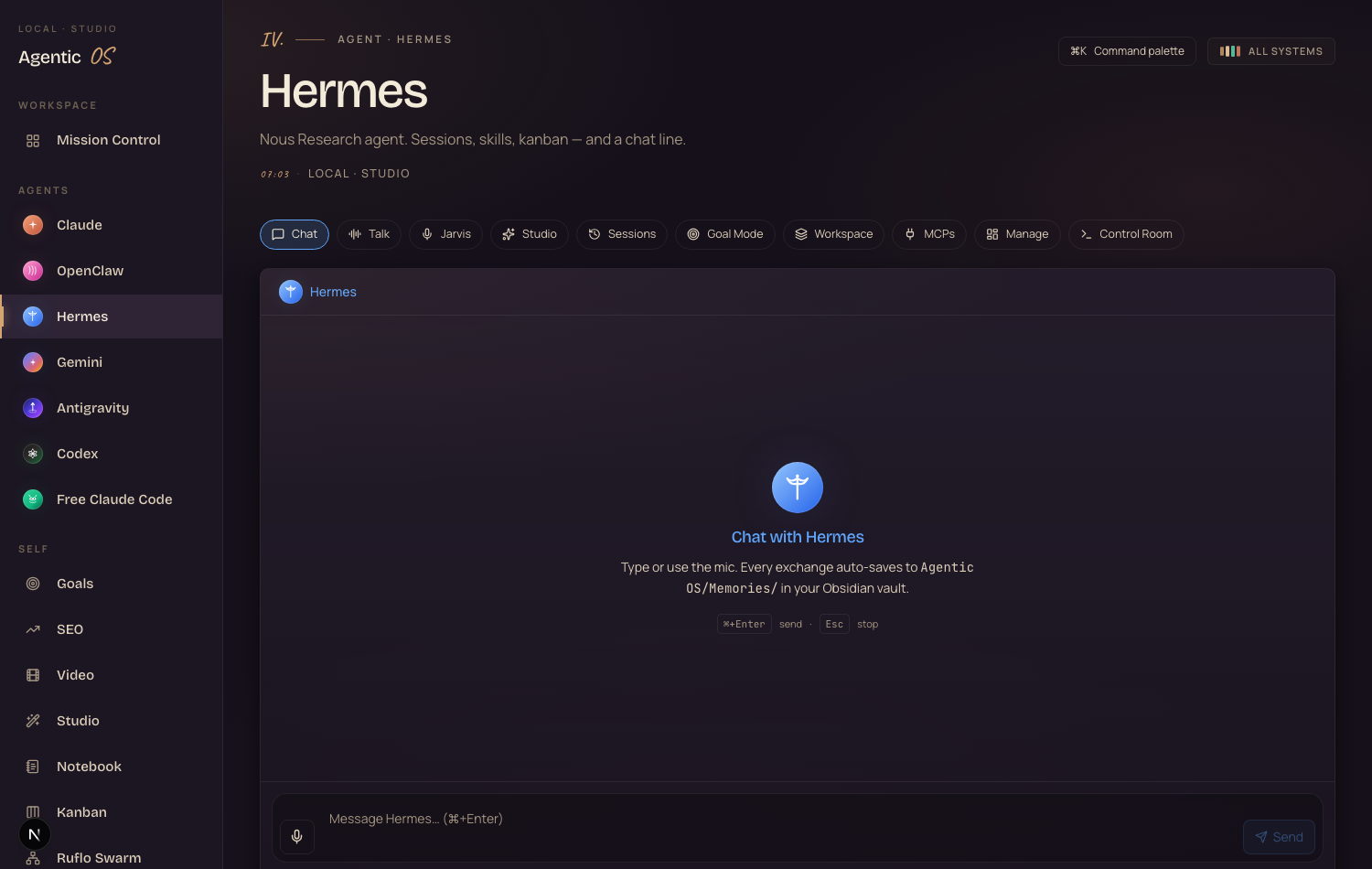
It connects OpenClaw, Claude, and Hermes into one dashboard. Shared memory. Shared context. So your email agent drafts with full knowledge of your business.
- The full Agent OS zip — the dashboard you see here
- The email-agent setup walked through screen by screen
- Every prompt and the Obsidian memory setup
- A 30-day roadmap for wiring agents into real work
- Four coaching calls a week with people building right now
- A member map — find operators near you
What's stopping you — and why it's wrong.
"This is too technical for me to set up."
It's a one-time path of clicks in Google plus one skill file. After that you just talk to it — and the Boardroom walks you through every screen.
"Letting AI touch my email is risky."
It gets its own mailbox, never your personal one. You can revoke its access in one click, and it won't obey instructions hidden inside emails.
"I'll set it up later when I have time."
Later never comes. The first three steps take one evening — and every day you wait is a day your inbox keeps running you.
158 pages of members who already broke through these exact beliefs — real businesses, real wins, documented.
Read the 158-page testimonials doc →What you just built.
The agent works from its own address, not yours.
A service account — no password to leak, revoke anytime.
The one step tutorials forget — now it can read and send.
No server to babysit — it loads right in chat.
You say send, it sends. No nagging.
Your inbox now works for you.
Don't rent an email assistant. Build one that's yours.
One agent today. The whole stack next.
Email is one agent. Inside the Agent Operating System, every part of your day gets one — all sharing the same memory and context, in one dashboard you control.
Your agents understand your business. They remember everything. And every new build — like this email agent — makes the whole system stronger automatically.
- I built it in one session. You get the zip file
- Every prompt. The Obsidian memory setup
- Coaching calls where we set it up together, step by step
- 2,200+ members, daily tutorials, a 30-day roadmap
- The 158-page doc of real member wins
Or read the 158 pages of member wins first →