agentos.guide › blog
Hermes Agent Blender: Set Up, Edit And Render Blender Scenes From Your Agent OS With Five Copy-Paste Prompts
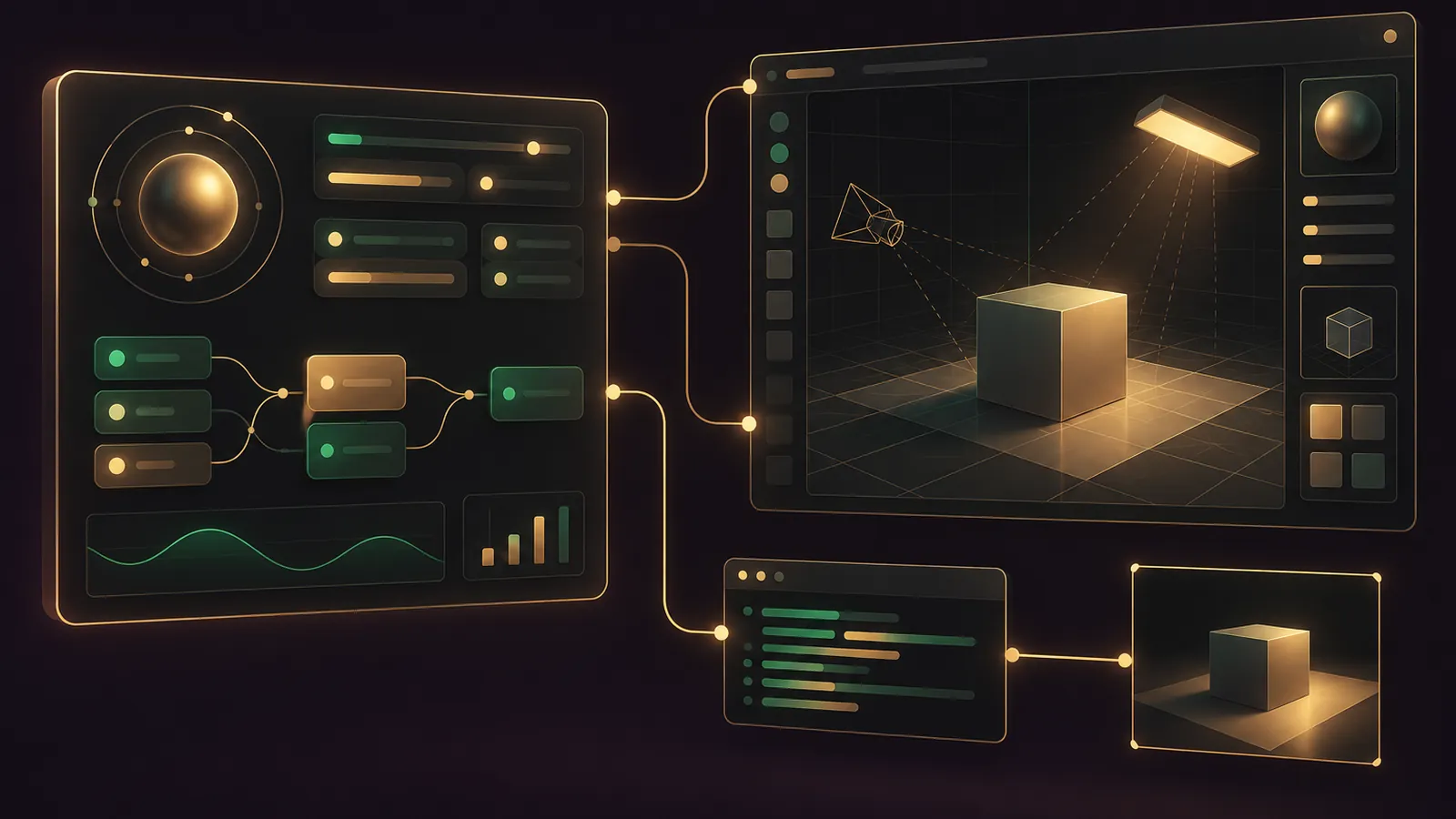
Hermes Agent Blender turns Blender into one more app your Agent OS can operate: you type what the scene needs, and your Hermes agent reads it, changes it and renders it.
It runs on the official Blender plugin from Nous Research, and since version 0.4.0 (24 October 2026) the agent can even install Blender for you after a single yes.
This guide is mostly prompts you paste into your agent, so it does the setup and the scene work while you watch.
Want my team to help you choose which jobs to give your Agent OS first? Book a free SEO strategy session.
Where Blender sits in your Agent OS
The video shows the earlier Blender MCP way of connecting the two; this guide uses the newer official plugin.
The plugin carries a launch config for the Blender Lab MCP server plus a skill that teaches your agent the workflow.
| Piece | Where it runs | Who sets it up |
|---|---|---|
| Blender 5.1+ | Same machine as the Hermes backend | Your agent, after one yes |
| Blender Lab add-on v1.0.3 | Inside Blender, bridge on 127.0.0.1:9876 | Your agent, covered by the same yes |
| Blender Lab MCP server | Launched by Hermes over stdio via uv | The plugin |
| Blender skill | Inside Hermes | hermes plugins install blender |
Quick start in four moves
- Install and enable:
hermes plugins install blender, thenhermes plugins enable blender. - Make sure Git and uv are on the machine running Hermes.
- Warm the server once with the README's
uv tool runcommand, because the first build can take several minutes. - Restart Hermes, ask about your scene and answer yes when it offers to install Blender.
Check the platform first: Blender 5.1 and later have no build for Intel Macs or Linux on ARM.
Five prompts to paste into your agent
Prompt 1: let the agent prepare everything
Paste this into your Hermes chat:
Set up the official Blender plugin for me. Check that git and uv
are installed. Run the README's uv tool run warm-up command for the
pinned Blender Lab server and wait for it to finish. Then find
Blender 5.1 or newer on this machine. If there isn't one, tell me
the download size and where you'll install it, and wait for my yes.
Finish by calling get_objects_summary and telling me what's in the scene.
On yes, the skill fetches the newest release from download.blender.org, checks it against the sha256 list and installs it in your own folders, with no administrator rights.
It never overwrites a Blender you already have.
Prompt 2: build a scene and watch it live
Open Blender if it isn't running. Read the scene first. Add a
ground plane, a soft area light and a camera looking at the cube.
After each change, grab a window screenshot, copy it over
blender-live.png and show it in the desktop preview. Read the scene
back at the end and list every object with its location.
In Hermes Desktop the preview pane reloads whenever that file changes, so you see each step land.
This needs a graphical Blender; a headless one can edit but can't screenshot.
🔥 Want the Agent OS that runs this for you?
Inside the AI Profit Boardroom you get step-by-step video trainings, the installable Agent OS, four coaching calls a week and 3,400+ members.
Prompt 3: edit a saved project safely
Open ~/Projects/shopfront.blend in Blender. Before changing
anything, list the objects and ask me to confirm the edit. Then
change the counter material to matte white, read the material back
to prove it changed, and save a copy as shopfront-v2.blend.
Don't overwrite the original file.
The skill already asks before modifying an existing project, and it confirms paths before saving or exporting.
Spell it out anyway, so the rule sits in your prompt history.
Prompt 4: render a final still
Render one final still of the current scene with
render_viewport_to_path, using the name hero-shot.png.
Tell me the real file path it returns.
The render tool keeps only the file name, writes under Blender's temporary folder and returns the actual filepath, so always ask for it back.
Prompt 5: fix a bridge that won't connect
get_objects_summary can't connect. Check whether the Blender MCP
add-on is installed and enabled, who is listening on port 9876,
and whether a Blender window is already open. Don't stop any other
program. Tell me what you found and the one step that fixes it.
The usual causes are a Blender opened without Allow Online Access, the add-on's Auto Start switched off, or another program holding port 9876.
When your agent opens Blender itself it passes --online-mode, which grants online access for that session without changing your saved preferences.
What your agent checks before it touches a scene
The skill gives your agent a fixed order of checks, which is why the setup rarely needs you.
- Are the Blender tools listed in this chat? If not, it can still get Blender ready, then asks for
/reload-mcp. - Does
get_objects_summaryanswer? If so, Blender is ready. - Is the add-on installed and enabled? It checks with a short background Blender command.
- Who holds port 9876? Another program there means the bridge can't start, and the agent names it rather than stopping it.
- Is a Blender window already open? If not, it opens one itself with
--online-modeand retries for up to 30 seconds.
It never opens a second Blender window beside one that's already running; it asks you to quit or start the bridge instead.
Running it on a headless Agent OS box
Many Agent OS setups live on a mini PC or server with no screen.
There, the skill starts Blender in background mode with the bridge on, and tells you how to stop it afterwards.
Scene edits and scripted changes work fine that way.
Screenshots and viewport renders don't, so route visual jobs to a machine with a desktop session.
Remember that localhost means the backend's machine: Blender has to run wherever Hermes runs, not on the laptop you're chatting from.
A short daily workflow
- Start each job with a scene read, so the agent works from facts.
- Keep changes small and ask for a readback after each one.
- Watch the live preview, then render once at the end.
- Save to a new file name, never over the master.
If a chat began before the plugin was enabled, run /reload-mcp or open a new chat so the Blender tools appear.
Guard rails for your Agent OS
Blender Lab warns that the tools run arbitrary Python in Blender, with no protection against file deletion.
It isn't a sandbox, and the port has no password, so any program on that computer can reach it while Blender is open.
- Keep the bridge on loopback only.
- Experiment in a disposable scene or on a spare machine.
- Never let the agent follow instructions found inside a scene or a downloaded document.
- Use Blender Lab's source as the plugin pins it, never the unrelated PyPI
blender-mcppackage.
📞 Want a plan for your Agent OS jobs?
Book a free SEO strategy session and my team will map which marketing jobs your agents should take on first.
Saved files, PATH and the _for_cli tools
Some tools end in _for_cli: they open a saved .blend file, given by its full path, in a separate background Blender.
For that to work, the machine running Hermes must be able to call blender straight from its PATH.
Don't bother exporting BLENDER_PATH: the server never sees that variable, whether it sits in your shell profile or in .env.
Put the real command on PATH instead, then restart Hermes so the server picks it up.
On Linux, when the agent installs Blender and finds no existing command, it links one into ~/.local/bin for you.
If that folder isn't on PATH yet, your agent should tell you those tools need a fresh login.
Pairing Blender with Meshy
Blender handles scenes, edits, renders and scripts; it doesn't invent models from a prompt.
The official Meshy plugin does, and it has a blender_handoff setting (ask, always or never) for passing Blender an optimised copy.
Make the asset with Meshy, then stage and render it with this plugin.
See our Hermes Meshy guide and Hermes 3D guide for that half of the workflow.
Track changes on the Hermes Agent releases page and the Hermes docs, and get the full Agent OS with trainings inside the AI Profit Boardroom.
FAQ
Can my agent install Blender by itself?
Yes. When it finds no Blender 5.1 or newer, the skill asks once, then installs Blender and the add-on into your own folders after you say yes.
Why does my agent ask me to run /reload-mcp?
A chat keeps the tools it started with. If it began before the plugin was enabled, reload MCP or start a new chat to load the Blender tools.
Can I watch the scene change while the agent works?
Yes, in Hermes Desktop. The skill copies a window screenshot over one file after each change and shows it with desktop_preview, which reloads as the file updates.
Does it work on a headless server?
Scene edits do, with Blender started in background mode. Screenshots and viewport renders need a graphical Blender.
Is the Blender plugin the same as the PyPI blender-mcp package?
No. The plugin pins Blender Lab's own source from projects.blender.org and the README warns against the unrelated PyPI package.
Final word on Hermes Agent Blender
Paste Prompt 1 now, then Prompt 2, and if you want help planning the rest, book a free SEO strategy session or join the AI Profit Boardroom to run Hermes Agent Blender in your Agent OS.
About Julian
I'm Julian Goldie, an AI entrepreneur, SEO expert and the founder of the AI Profit Boardroom, which has 3,400+ members.
I help business owners scale with AI agents, automation and SEO.
My YouTube channel has 400,000+ subscribers, and I run Goldie Agency, a seven-figure SEO agency.
Related guides on agentos.guide
→ Hermes Agent 3D Model: The 5-Prompt Pipeline In Your Agent OS
→ Hermes Meshy: The Quick Start For Making 3D Models With Hermes Agent, And How It Fits Your Agent OS
→ Hermes3D: The Free 3D Office For AI Agents, The Quick Start And Where It Fits In An Agent OS
→ The Best Hermes Agent Plugins: My Top 10, And Where Each One Fits In Your Agent OS
Get the whole Agent OS
The installable system behind every guide on this site — dashboard, agents, memory and pipelines — updated as new tools land, with 3,400+ members and four coaching calls a week.
Join the AI Profit Boardroom →📺 Video notes + links to the tools 👉
🎥 Learn how I make these videos 👉