agentos.guide › blog
Grok Bot Outlook In Your Agent OS: Five Copy-Paste Prompts For Codes, Attachments And Drafts
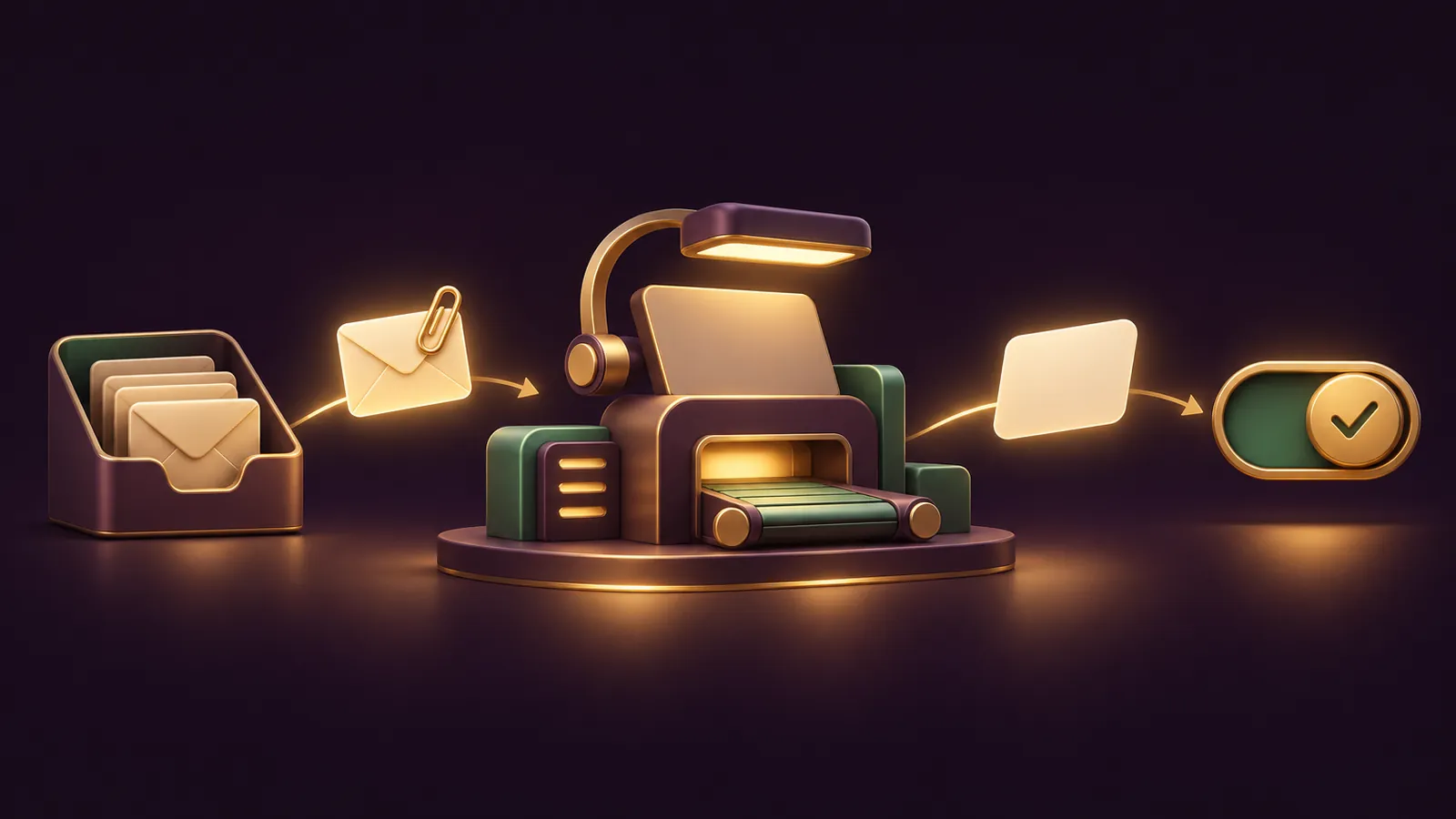
Grok Bot Outlook fits neatly into an Agent OS when you treat it as the mail hand of the system: your agent plans the job, the Bot pulls the attachment or the login code from Outlook, builds the file, and leaves a draft for you to send.
xAI documents four Outlook jobs, and this guide turns each one into a prompt you can paste.
The facts come from the computer and apps docs, the files and results page and the Grok Bot changelog.
Setting this up for a client or your own office? My team runs a free SEO strategy session where we map it out with you.
Quick start: connect Outlook in four moves
- Open Connect apps in the sidebar (on the phone, tap your avatar first), find Outlook and add it.
- Press Authorize or Authenticate and complete the Microsoft sign-in in the browser within about ten minutes.
- Check Outlook is listed under Installed. If it reads Needs auth or Disconnected, choose Authenticate.
- In any chat, type @ and select Outlook so the task uses the app rather than the website.
Work or school account? Your Microsoft 365 admin may have to approve Grok Bot first; the section further down covers that.
Where Outlook sits in your Agent OS
| Job | Who handles it |
|---|---|
| Deciding which emails to automate | You, with a list your agent drafts |
| Reading an emailed login code | Grok Bot, from connected Outlook |
| Opening an attachment and processing it | Grok Bot, on its cloud computer |
| Attaching the result to a reply | Grok Bot, on an Outlook draft |
| Sending | You, from the draft card or approval card |
The last row is the one to protect.
The Outlook features xAI describes are about preparing mail, and the documented send path runs through a draft card and your Send.
Set the guard rail before any prompt
Auto Review checks every action a Bot is about to take, including calls to a connected app, according to the approvals docs.
Give it a firm rule for email.
- Go to Settings, General, and find Custom Rules under the Auto-review switch.
- Describe the action: "send an email from my Outlook".
- Pick Ask first and press Add Rule.
Ask first rules always pause the matching action, and they outrank Allow rules.
Your agent can't talk its way past this, and neither can an email: Auto Review only treats your own messages as requests.
Prompt 1: map the inbox jobs worth automating
Give this to your planning agent first. It turns a vague wish into a short list.
I run [business type]. List the 5 email jobs I repeat most each week
that involve an attachment, an emailed login code, or a reply that
carries a file. For each, write: the sender, the file involved, what
I do with it, and the reply I send. Rank them by how often they come
up. Do not include anything that needs folders, rules or labels.
The last line keeps the list inside what the Outlook app is documented to do.
Prompt 2: attachment in, clean file out
Send this to a Grok Bot with Outlook attached through @.
Find the most recent email from [supplier name] in my Outlook.
Bring its attachment onto your computer. Turn it into a spreadsheet
with columns: item, quantity, unit, notes. Compare it with
[last-order file] and list every line that changed. Save the new
spreadsheet as [name]. Do not reply or send anything.
The files page confirms a Bot can pull an email attachment onto its computer without pasting the contents into chat.
Keep in mind that all your Bots share that one computer, so the saved spreadsheet is visible to every Bot on your account.
🔥 Want the full Agent OS mail workflow on video?
Inside the AI Profit Boardroom you get step-by-step video trainings, the installable Agent OS, four coaching calls a week and 3,400+ members building the same kind of Bot workflows.
Prompt 3: draft the reply with the file attached
Write a short reply to that email from [supplier name]: confirm the
order and mention the two biggest changes you found. Attach the
spreadsheet you saved to an Outlook draft. Stop when the draft is
ready and show me the draft card. Do not press Send.
Since v0.79.2, released on 5 November 2026, Outlook draft cards list every attached file, and pressing Send includes them.
Check three things on the card: the recipient, the wording, and the file names.
If you've also given your Bots their own email address, the Bot will ask which account to send from when either could work.
Pick Outlook for anything going to a customer or supplier, so the reply comes from the address they already know.
Prompt 4: handle a portal login that emails a code
Sign in to [portal] using my saved Vault login. If the site emails a
one-time code, read it from my connected Outlook and finish signing
in. If it asks for single sign-on, a passkey or a QR code, stop and
hand me the computer. Then download [report] and save it.
xAI puts Vault logins at the front of the queue, with a password manager next and a Secure Form as the fallback.
When a site emails a code, the Bot can read it from Outlook; steps like a passkey still come back to you.
Never paste a password or code into the chat yourself.
Prompt 5: the weekly email review
Look back over this week's chats where you used Outlook. List each
draft you prepared, whether I sent it, and any step where you had
to stop and ask me. Suggest one change to my requests or my Custom
Rules that would make next week smoother. Do not change any rule.
Run this on Friday, read the suggestions, and change the rules yourself.
The last line of the prompt matters: rule changes are yours to make, because they decide what the Bot can do without asking.
Over a few weeks the review shows which requests produce clean drafts first time and which ones keep stalling, so you can rewrite the weak ones.
A weekly routine that keeps it tidy
- Monday: Prompt 2 on the week's supplier or client files.
- Daily: Prompt 3 for each reply that needs a file; you send from the card.
- When a portal asks: Prompt 4.
- Friday: Prompt 5, then a quick look at your Ask first rule.
If your Bots also work inside Microsoft chat, the Grok Bot Microsoft Teams guide covers that channel separately.
What to leave out of your prompts
Some requests sound reasonable but sit outside what xAI documents for Outlook, so keep them out of your Agent OS playbooks.
- Folders, rules, categories and signatures. None are described for the Outlook app.
- Calendar bookings. Outlook Calendar is a separate connector, and its features aren't written up.
- Two Outlook mailboxes at once. Second accounts are shown for apps like Notion; Outlook isn't mentioned either way.
- Unattended sending. Plan every Outlook email around a draft card and your Send.
If you need any of these, test it yourself on a harmless email first, and don't promise it to anyone until it works.
Bear in mind the Bot inbox limits you may read about (10 attachments, 10 MB each, 25 MB in total) are documented for the Bot's own mail.grokbot.com address, not for Outlook drafts.
Work accounts and team policy
Company and school tenants on Microsoft 365 often need their admin to approve Grok Bot before Outlook, Outlook Calendar, OneDrive or Teams will connect.
Connect from a computer, copy the Approval link for your IT admin, and send it on; on the phone (app 1.19.0 onwards) you only get a prompt to ask IT, with no link.
If Microsoft says blocked by your organization, only the admin can lift it; screenshot the page, since it carries the connector, Entra app ID, error code and time.
Your admin's side of that is tenant-wide admin consent in Microsoft Entra ID.
On a team, Grok Bot follows the team's connector policy, explained on the teams and enterprises page.
A blocked Outlook reads Disabled by team admin; the admin re-enables it in the Teams Marketplace.
A teammate's Team Bot asks before using your personal Outlook, with Allow once, Always allow or Skip.
📞 Want this mapped to your own inbox?
Book a free SEO strategy session and my team will help you choose the first Outlook jobs and the rules around them.
My verdict on Grok Bot Outlook in an Agent OS
It earns its slot as the part of the system that touches mail: codes, attachments and drafts with files.
The draft card plus an Ask first rule gives you a clean handover point between the Bot's work and your decision.
Don't build anything that relies on Outlook folders, labels or inbox search, because xAI only documents those for Gmail.
For the full Agent OS and weekly coaching, join the AI Profit Boardroom.
Also On Our Network
- 🌐 The five-step Outlook setup with an Ask first rule before the first send
- 🌐 Whether connecting Outlook pays off for a shop, a service firm or an agency
- 🌐 An eight-point scorecard on what the Outlook app does well and where it stops
- 🌐 Which benchmark models to use for the files your Outlook Bot attaches
FAQ
Which prompts need Outlook attached?
Prompts 2 to 5 go to a Grok Bot with Outlook attached through @. Prompt 1 is planning work for any agent in your Agent OS.
Will my agent send emails without me?
Not if you add an Ask first rule for sending. Each Outlook draft card then waits for you, and Send includes the listed files.
Can the Bot sort or label Outlook mail?
The docs don't describe that for Outlook. Labels and inbox search are documented for the Gmail app only.
Where do the attachments go?
Onto the Bot's cloud computer, which every Bot on your account shares, so treat those files as visible to all your Bots.
Why can't I connect my company mailbox?
Your Microsoft 365 admin probably needs to approve Grok Bot. Use the approval link shown on the computer sign-in page.
Can I run Prompt 4 on any website?
Use it for sites where you have a saved Vault login. Steps like passkeys, single sign-on or QR codes still need you on the computer.
Final word on Grok Bot Outlook In Your Agent OS
Want the whole system set up properly? The AI Profit Boardroom has the Agent OS and the trainings, my team offers a free SEO strategy session, and together they let your Agent OS run Grok Bot Outlook the safe way.
About Julian
I'm Julian Goldie, an AI entrepreneur, SEO expert and the founder of the AI Profit Boardroom, which has 3,400+ members.
I help business owners scale with AI agents, automation and SEO.
My YouTube channel has 400,000+ subscribers, and I run Goldie Agency, a seven-figure SEO agency.
Related guides on agentos.guide
→ Grok Bot Microsoft Teams: Plan The Rollout In Your Agent OS
→ Grok Bot Connectors: Connect, Track And Reconnect Every App In Your Agent OS
Get the whole Agent OS
The installable system behind every guide on this site — dashboard, agents, memory and pipelines — updated as new tools land, with 3,400+ members and four coaching calls a week.
Join the AI Profit Boardroom →📺 Video notes + links to the tools 👉
🎥 Learn how I make these videos 👉